

Key Takeaways
Why Your Home Network Struggles - and What Actually Fixes It
Most home network problems aren't caused by a slow internet plan - they're caused by how the local network is set up. A router shoved in a corner, walls packed with insulation, or too many devices competing for the same radio channel can all turn a fast connection into a frustrating one.
Understanding a few core principles goes a long way. Wi-Fi signals travel in all directions from the router, weakening with distance and losing strength each time they pass through a wall, floor, or appliance. The goal is to put your router in a position where its signal has the shortest, clearest path to the devices that need it most. For a broader look at how connected devices use these signals, see how your smart home devices communicate.
Best Practices for a Reliable Home Network
The following practices address the most common causes of poor home network performance. Apply as many as your home layout and budget allow - even a few changes can produce a noticeable difference.
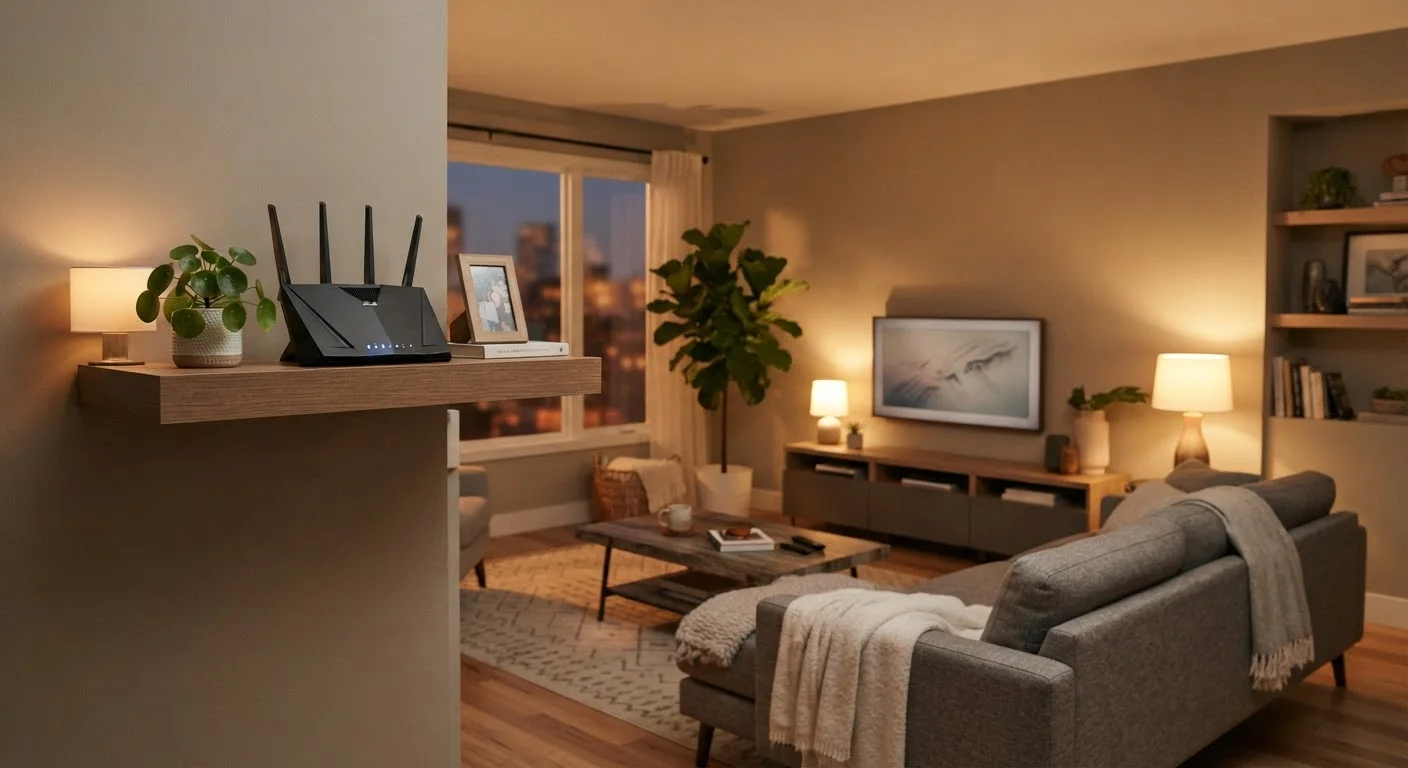
Place your router centrally and at elevation, away from walls and floors.
A router broadcasting from a corner wastes much of its signal into the outside world. Positioning it in a central room and raising it off the floor - on a shelf or bookcase - lets the signal reach more of your living space with less obstruction.
Use a mesh networking system if your home has multiple floors or persistent dead zones.
A single router has a practical range limit, and physical obstacles reduce it further. Mesh systems use two or more nodes that communicate with each other to blanket a larger area with a single, seamless network name - so your devices hand off smoothly as you move through the home.
Run Ethernet cable to devices that stay in one place and demand consistent bandwidth.
Wired connections are immune to radio interference, don't compete for airtime with other Wi-Fi devices, and deliver more consistent throughput than wireless. For devices like smart TVs, gaming consoles, or desktop computers, a wired drop is almost always worth the effort.
Create a separate network segment - often called a guest network - for smart home and IoT devices.
Smart home gadgets such as cameras, thermostats, and locks vary widely in how often their software is updated, which can make them a security risk on your primary network. Isolating them reduces exposure and limits how much network congestion they add for your computers and phones. For context on the protocols these devices use, see how Zigbee, Z-Wave, and Wi-Fi differ.
Select the least congested Wi-Fi channel manually or enable automatic channel selection on your router.
In apartment buildings or densely packed neighborhoods, many routers compete on the same default channels, causing interference that slows everyone down. Most modern routers can scan for the least-used channel automatically, and many allow manual selection through their admin interface.
Reboot your router and modem on a regular schedule - or after any ISP outage.
Routers accumulate memory usage and stale connection tables over time, which can degrade performance gradually. A scheduled reboot clears these states and forces the device to reconnect to your ISP with fresh settings.
Quick Actions You Can Take Today
You don't need to overhaul your entire setup at once. These immediate steps can produce faster results with minimal effort or cost.
For unfamiliar terms like mesh node, SSID, or band steering, the Smart Home Glossary offers plain-language definitions. If your network serves smart home devices, the Smart Home Tech hub has additional guidance on building a connected home that performs reliably.