

Computers & Technology

Keeping Your Smart Home Secure: A Practical Checklist

Share
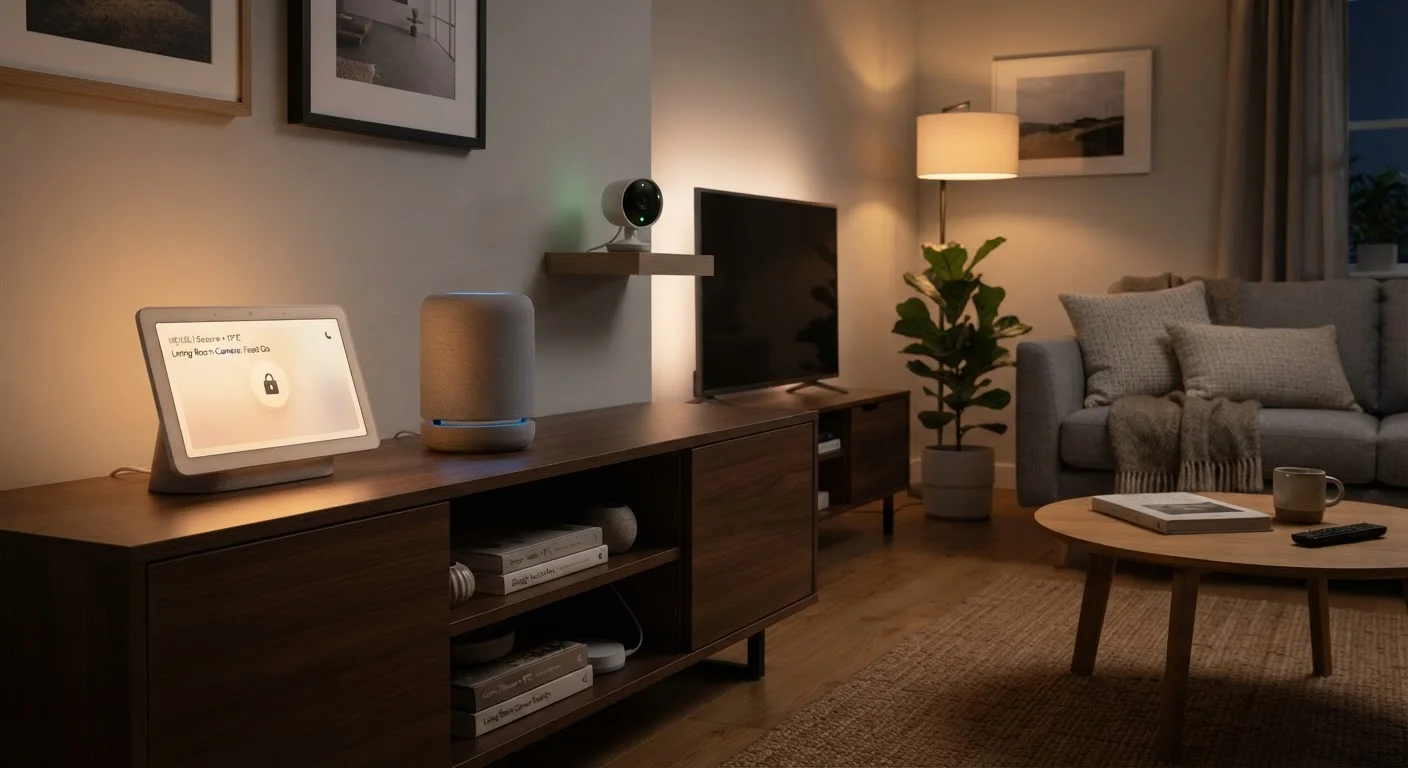
Smart home devices including a hub display, speaker, and security camera arranged in a modern living room.

Key Takeaways

Weak or default passwords are the most common entry point for smart home attacks.
Keeping device firmware updated closes known security vulnerabilities automatically.
Isolating smart devices on a separate network limits damage if one device is compromised.
Disabling unused features reduces your home's overall attack surface.
Regular audits — not just one-time setup — are essential for ongoing security.
30–60 min

Summary

22 items · 30–60 minutes

Why Smart Home Security Needs Ongoing Attention

A smart home brings genuine convenience, but each connected device — a thermostat, a doorbell camera, a smart plug — also represents a potential entry point for unauthorized access. Unlike a laptop or phone, many smart devices run quietly in the background for years without anyone checking whether their software is current or their settings are still appropriate.

Security researchers consistently find that most smart home breaches trace back to a small set of preventable problems: default passwords left unchanged, firmware that was never updated, and overly permissive network configurations. This checklist walks you through each of those risk areas so you can find and fix gaps before they become problems.

If you're still organizing the network side of your setup, the smart home network setup guide covers how to structure connections so devices stay reliable and better separated from your personal data. And to understand what data your devices may already be sharing, see what your connected devices are actually collecting.

Don't Rely on Initial Setup Alone

Many people configure their smart devices once at installation and never revisit the settings. Security threats evolve continuously, and a device that was safe at setup may develop vulnerabilities months later. Treat smart home security as a recurring task, not a one-time step.

Tools You'll Need

Before working through the checklist, gather the following. Most of what you need is either built into your router or available as free software.

Required

Router admin panel

Used to update router firmware, create separate networks, and review connected devices.

Required

Device companion apps

Used to check for firmware updates, review permissions, and manage account access for each smart device.

Required

Password manager

Generates and securely stores unique, strong passwords for every device and account.

Optional

Network scanner app

Scans your local network to list all connected devices, helping you spot unfamiliar or unauthorized hardware.

Optional

Manufacturer security advisory pages

Provides notices about known vulnerabilities and available patches for specific device models.

The Security Checklist

Work through each group below in order. The must items address the most serious risks; should items provide a strong secondary layer; nice-to-have items add depth for readers who want a more hardened setup.

Passwords & Accounts

Change the default admin username and password on your router before doing anything else. Must
Replace any default passwords on every smart device with a unique, strong password of at least 12 characters. Must
Enable two-factor authentication (2FA) on all manufacturer apps and cloud accounts tied to your devices. Must
Use a password manager to store and generate credentials so you're not reusing passwords across devices or accounts. Should
Audit which family members or guests have app access to your devices and remove accounts that are no longer needed. Should

Firmware & Software Updates

Check each device's companion app or admin panel for available firmware updates and install any that are pending. Must
Update your router's firmware through its admin interface — router firmware is frequently overlooked. Must
Enable automatic updates on devices that support the option, so future patches apply without manual effort. Should
Note the end-of-support date for older devices; manufacturers eventually stop issuing security patches, which is a signal to replace the hardware. Should

Network Configuration

Create a separate Wi-Fi network (a guest network or dedicated VLAN) exclusively for smart home devices, keeping them off the same network as your computers and phones. Must
Disable WPS (Wi-Fi Protected Setup) on your router — it introduces a known security weakness that outweighs its convenience. Must
Confirm your router is using WPA3 or WPA2 encryption; avoid older WEP or open-network configurations. Must
Review the list of devices connected to your network and remove or investigate any you don't recognize. Should
Disable UPnP (Universal Plug and Play) on your router if you don't specifically need it — it can allow devices to open ports without your knowledge. Nice to have

Device Permissions & Features

Review app permissions for each device's companion app and revoke access to microphone, camera, or location data that isn't necessary for core functionality. Must
Disable remote access on devices where you don't actively use it — fewer open pathways mean fewer risks. Should
Turn off voice purchasing or other high-risk features on smart speakers if they aren't being used. Should
Check privacy settings in each manufacturer's cloud dashboard and limit data sharing to what you're comfortable with. Should
Enable login alerts or notification emails for your smart home accounts so you're informed of any unexpected sign-in attempts. Nice to have

Ongoing Maintenance

Schedule a full security review of your smart home setup at least every six months. Must
Remove devices from your network and accounts before selling, donating, or disposing of them — perform a full factory reset first. Must
Subscribe to security advisories from your device manufacturers so you're aware of newly discovered vulnerabilities. Nice to have

Think of this checklist the way you might approach home maintenance tasks — a periodic review keeps small problems from becoming costly ones. Revisit this audit at least twice a year, or any time you add a new device to your network.

What to Do If You Suspect a Device Has Been Compromised

Signs of a problem include unexpected changes to device settings, devices that respond sluggishly or erratically, or unfamiliar devices appearing on your network. If something seems off:

  1. Disconnect the suspected device from your network immediately by removing it from your router's connected-devices list or disabling its Wi-Fi access.
  2. Change your router admin password and your Wi-Fi passwords from a separate, trusted device.
  3. Perform a factory reset on the affected device and reconfigure it from scratch using the steps in this checklist.
  4. Check the manufacturer's support page for any known vulnerability disclosures related to your device model.

Security risks don't disappear when you're away from home either — travelers face their own set of digital threats. The guide to digital security while traveling covers how to keep your data safe when you're away, including protecting remote access to your home devices.

Finally, if you're newer to smart home technology and wondering whether the security concerns are overblown, common smart home myths separates real risks from fiction — a useful read for grounding your expectations.

Computers & Technology Editorial Team is the collective byline for our editorial team and contributor network. Articles published under this byline or an editorial pen name are researched, written, and reviewed according to our editorial standards for clarity, consistency, and independence before publication.

View all articles by Computers & Technology Editorial Team →
Disclaimer: The content on this site is provided for informational purposes only and should not be considered a substitute for professional advice. While we strive to provide accurate and up-to-date information, we make no guarantees regarding its completeness or accuracy. Always consult a qualified professional for advice specific to your circumstances before making any decisions.